USB (Non-PS5®)
Everything you need to connect any supported controller to your game system using a Cronus Zen™
Output Protocol
Before setting up your controller, you will need to use Zen Studio to set the Output Protocol of the game system you are using. This is especially important if you are using the new Zen LINK™ expansion module.
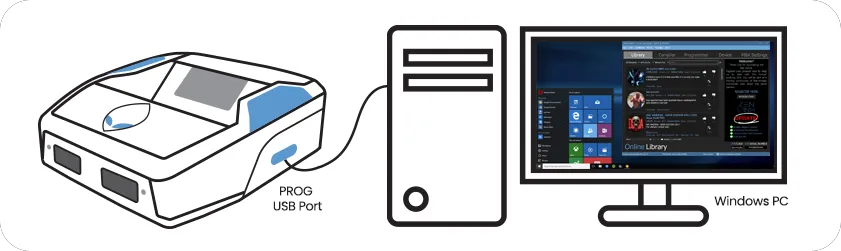
Connect Cronus Zen™ to a Windows® PC: PROG USB and open Zen Studio.
Select the Device panel and set the Output Protocol to the system you are using. Note: Auto should also work if you are not using the Zen LINK™ expansion module.
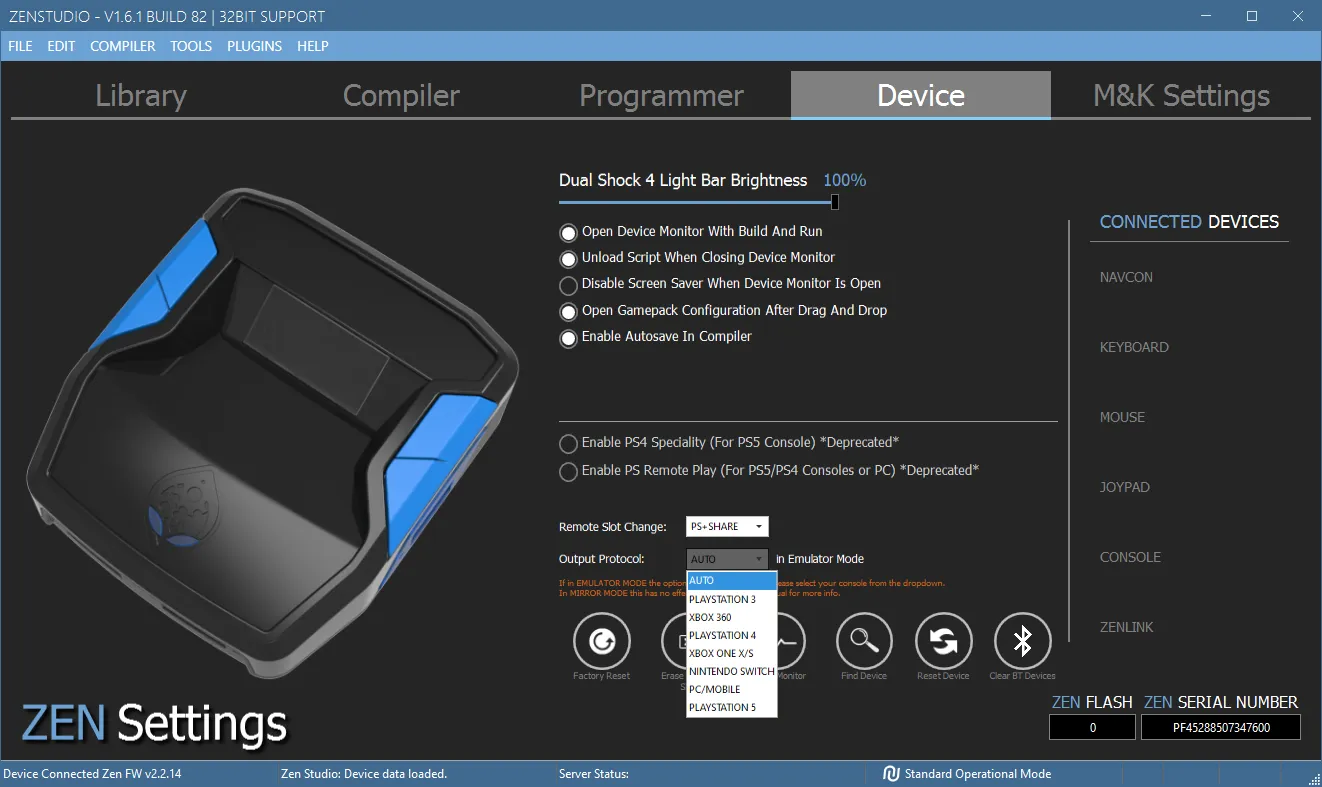
A Hard Reset changes this to AUTO, which should still work for most setups. However if you are using the Zen LINK™ Expansion Module, you'll need to make sure it's corrected to the system you're using or it will not function correctly.
Game System | Output Protocol |
|---|---|
PlayStation® 5 | See PS5® GuideSee PS5® Guide |
PlayStation® 4 | PLAYSTATION 4 |
Xbox® | XBOX ONE X/S |
Nintendo® Switch* | NINTENDO SWITCH |
The Nintendo® Switch must have wired communication enabled. Go to System Settings > Controllers and Sensors > Pro Controller Wired Communication: On
NINTENDO® SWITCH: If using a Switch TV Dock, make sure the 15v power supply is connected or the Zen will not power on. If you are using the Switch in Handheld mode, you'll also need an OTG USB-C adapter.
USB (Default)
The default USB setup pairs the same controller with the same console (example Xbox® Series controller to the Xbox® Series X console).
Connect Cronus Zen™ to Game System: CONSOLE/PC USB (Short USB cable) Connect Controller to Cronus Zen™: A1 USB

Power on the controller and tap Zen's small reset button. It will pair to the Zen & console in just a few seconds.
WIRED HEADSET (DEFAULT)
If you wish to use a wired headset, first connect it directly to your controller, then connect the controller to A1, and finally connect the Zen to your console. Please understand there are a wide variety of different headsets, controllers, and consoles, so we can't guarantee audio support for every combination.
USB (Crossover)
The crossover USB setup pairs the controller with a different console (example DualSense® controller to an Xbox® Series X console).
Connect Cronus Zen™ to Game System: CONSOLE/PC USB (Short USB cable) Connect Default Controller to Cronus Zen™: A1 USB (aka AUTH controller) Connect Crossover Controller to Cronus Zen™: A3 USB

Power on the controller and tap Zen's small reset button. It will pair to the Zen & console in just a few seconds.
WIRED HEADSET (CROSSOVER)
If you wish to use a wired headset, first connect it directly to your crossover controller, then connect the controller to A3 (or to the AUTH controller connected to A1 if that doesn't work), and finally connect the Zen to your console. Please understand there are a wide variety of different headsets, controllers, and consoles, so we can't guarantee audio support for every combination.