GameSir® Fix
Fix issues with GameSir® G7 HE/SE
After the latest firmware update, GameSir® G7 HE/SE controllers no longer work when directly connected to the Cronus Zen.
This guide shows you exactly how to fix the issue with two simple methods:
- Method 1: Downgrade the controller firmware to a compatible version.
- Method 2: Switch the input mode to restore ZEN compatibility. (No Downgrade)
Method 1: Downgrading
⚙️The older Firmware to downgrade
Method 2: Changing input mode
🫰Special thanks to Ari ♡ "kiwiko" for the methods
GAMESIR G7 SE
Immerse yourself in a pinnacle gaming experience with the Xbox Series X|S Gamesir G7 SE Controller, showcasing the innovative Hall Effect Stick sensors in both left and right analog sticks for almost zero stick drift and enhanced in-game precision.
For Cronus Zen compatibility, you must do the following:
- Download the Gamesir Nexus app
- Select the Update button and program to the latest version.
- Once completed, select the Profiles button.
- Profile 1 should be highlighted, select the Configure button.
- Select the Sticks button at the top of the screen.
- Set the Left Stick Range 'Initial' value to 0. Enable RAW.
- Set the Right Stick Range 'Initial' value to 0. Enable RAW.
- Move the sticks around until both X&Y reads 0.00%
- Press A to confirm.
- Connect Zen to your console from the CONSOLE/PC USB port.
- Wait 5 seconds then connect the Gamesir controller to A1. Note: If you don't wait the controller will not power on (look for the White LED).
- Tap Zen's reset button and after a few seconds the RGBs will change to GREEN.
- You're now ready to play with peak precision!
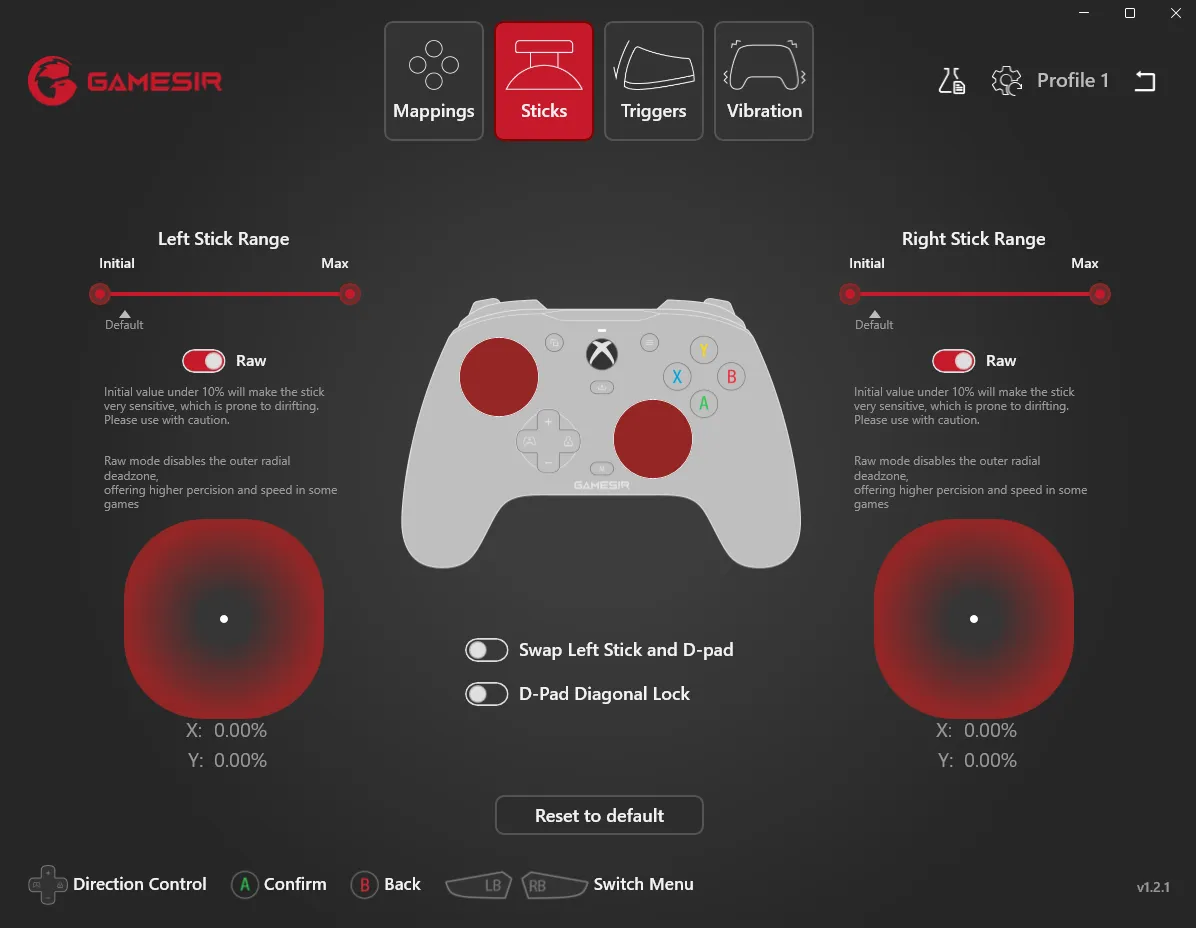
Gamesir Nexus App