Wireless (Non-PS5®)
In this guide, we will provide you with step-by-step instructions on how to setup your console and controller using Bluetooth or Wireless Adapter.
It's important to note that you will lose controller audio features when using your controller wirelessly. For example, a DualSense® controller connected to the Zen by USB fully supports a wired headset, including the controller speaker and mic (requires the new Zen LINK™ Expansion Module with Native PS5® mode enabled) - but these features will not work when the controller is paired to the Cronus Zen by Bluetooth.
Wireless Support
The chart highlights which controllers do/do not support Bluetooth or Wireless Adapter.
| USB | BT | ADAPTER |
|---|---|---|---|
DualSense® | YES* | YES* | See Notes* |
DualSense® Edge | YES* | YES* | See Notes* |
DualShock® 4 | YES | YES | N/A |
Xbox® (All models) | YES | NO | YES* |
Nintendo® Switch (All models) | NO | YES | N/A |
Astro® C40 | YES | NO | YES |
*Bluetooth does not support DualSense® controller mic/speaker or a wired headset. Note: Full Native PS5® console support with a USB DualSense® controller requires the Zen LINK™ Expansion Module.
*Using Xbox® Series X|S & Xbox® One controllers wirelessly requires the Xbox® Wireless Adapter.
XBOX® (Wireless Adapter)
Any supported Xbox® Controller can be used wirelessly with an Xbox® Series X|S or Xbox® One console (DEFAULT), or any other supported console such as a PlayStation® or Nintendo® Switch (CROSSOVER). This requires the Xbox Wireless adapter (using the sync button will not work).
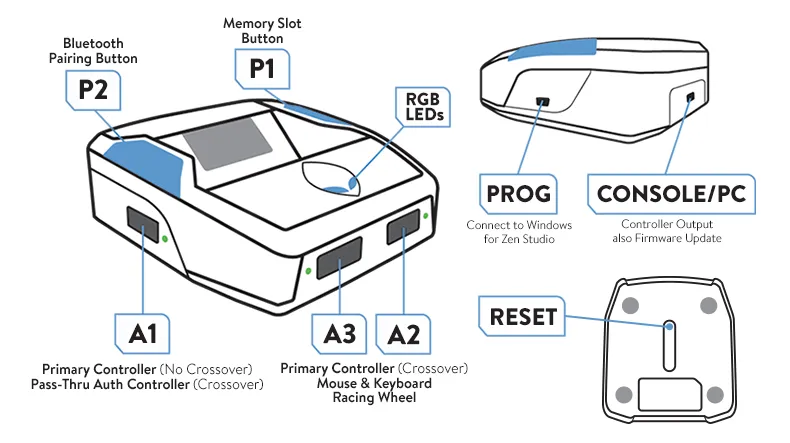
DEFAULT: Connect the Xbox® Wireless Adapter to A3. Then, connect your Xbox® Controller to A2. After waiting a few seconds, remove the USB cable from A2. You'll notice the wireless adapter's LED will begin to flash. Once it stops flashing, your Xbox® controller is successfully paired to Zen.
CROSSOVER: Same as above, but make sure a controller that matches the console is connected to A1 for correct authentication.
For example, if you are gaming on a PS4® with the Xbox® Elite S2 controller, a PS4® DualShock®4 controller must be connected to A1, and the Xbox® controller would be paired to the Xbox® Wireless Adapter connected to A3.
PLAYSTATION® (Bluetooth)
Any DualSense® or DualShock®4 controller can be used wirelessly with a PS5® or PS4® console (DEFAULT), or any other supported console such as the Xbox® Series X|S or Nintendo® Switch (CROSSOVER). Note: Full PS5® console support with a DualSense® controller requires the ZenLINK Wi-Fi expansion module..
DEFAULT: Press the Bluetooth pairing button P2 on your Zen. The RGB LEDs will flash blue when in pairing mode. On your DualSense® or DualShock®4 controller, hold down SHARE + PS and wait for the lightbar to start flashing. Once the controller and Zen are paired, both lightbar and RGB LEDs will stop flashing.
CROSSOVER: Same as above, but make sure the PlayStation® controller is connected to A1 for correct authentication.
For example, if you are gaming on an Xbox® with the DualSense® controller, an Xbox® controller should be connected to A1, and a DualSense® controller would be paired to the Cronus Zen by Bluetooth.
SWITCH WIRELESS PRO (Bluetooth)
Any Switch Wireless Pro Controller can be used wirelessly with a Nintendo Switch console (MATCHED), or any other supported console such as a PS5 (CROSSOVER).
Press the Bluetooth pairing button P2 on your Zen. The RGB LEDs will flash blue – that's your sign it's in pairing mode. On your Switch Wireless Pro, hold down the sync button and the player LEDs will start to blink green. Once the controller and Zen are paired, both Player and RGB LEDs will stop flashing, indicating you're ready to go!
SWITCH JOY-CONS (Bluetooth)
Any Switch Joy-Con can be used wirelessly with a Nintendo Switch console (MATCHED), or any other supported console such as a PS5 (CROSSOVER).
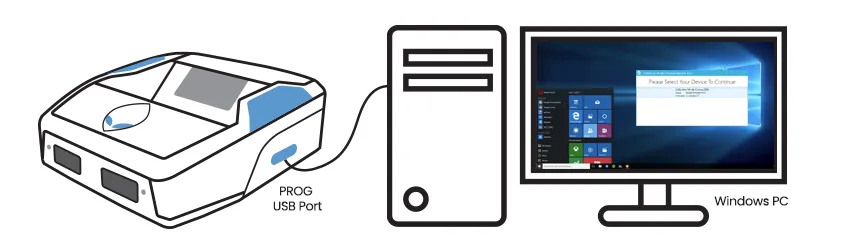
Plug your Cronus Zen into a computer using the PROG USB port.
Open ZEN STUDIO 1.6.1 Build 82 > Device Panel > Emulator Output Protocol set to NINTENDO SWITCH.
The Nintendo Switch Left & Right Joy-Con Controllers now have to be paired separately.
Connect CRONUS ZEN to the SWITCH TV DOCK from the CONSOLE/PC USB port. NOTE: Handheld (No TV Dock) requires an OTG USB-C adapter
Press Zen's Bluetooth pairing button P2 until the RGBs flash BLUE
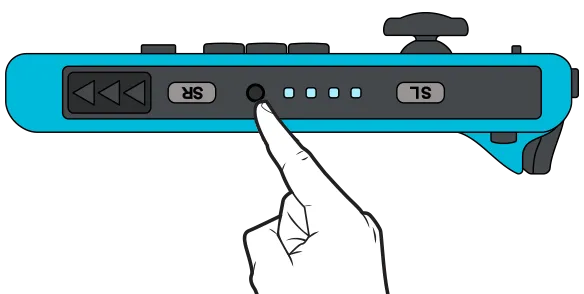
Press the LEFT JOY-CON sync button until the player LEDs start to flash. After a few seconds, the Zen RGBs will change to RED, and the Joy-Con will vibrate.
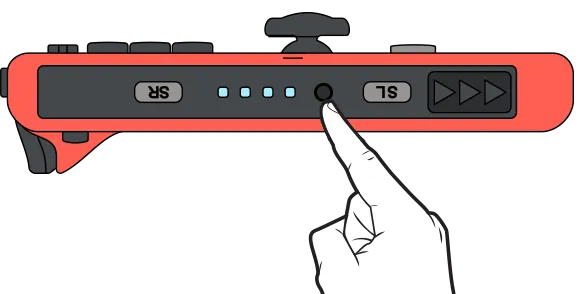
Now press the RIGHT JOY-CON sync button and again after a few seconds, the JOY-CON will vibrate.
We recommend using a powered USB hub with a 5v AUX port. This connects to your PC/Mac and the Zen connects to the hub. In almost every case, this will solve most, if not all issues with PS5 disconnecting, not pairing the controller, laggy response, no rumbles and no adaptive triggers.
The Cronus MK Switch + Powered Hub/5v Aux is now available from cronus.shop