Run Zen Studio on Mac
How to successfully run Zen Studio on a Mac using Boot Camp and Windows 10 or Windows 11.
The Zen Studio software is designed for Windows only. This would usually restrict you to using a PC, however, you can also run Windows 10 or Windows 11 on a Mac in a simple dual-boot configuration using the free tool Boot Camp, and this is fully compatible with Zen Studio and the Cronus Zen hardware.
Important: Most Virtual or Cloud setups will not work. You must use Bootcamp and install Windows 10 locally. Apple M1 users will need to use Parallels 18 in order to use Zen Studio on a Mac.
This guide seems like a lot of steps but it's all on-screen prompts and very easy to do, it shouldn't take you longer than 30 minutes and is quite simple to uninstall later.
Mac's that support Windows 10/11
- MacBook introduced in 2015 or later
- MacBook Air introduced in 2012 or later
- MacBook Pro introduced in 2012 or later
- Mac mini introduced in 2012 or later
- iMac introduced in 2012 or later
- iMac Pro (all models)
- Mac Pro introduced in 2013 or later
Important: Most Mac's since 2020 now use the new Apple M1 chip which, unfortunately, is not compatible with this setup and Zen Studio.
Supported macOS Versions
These are all Mac operating systems compatible with Boot Camp and Windows 10/11, starting with the most recent. When a major new macOS is released, it gets a new name, such as macOS Monterey.
If your Mac is using an earlier version of any Mac operating system, you should install the latest Apple software updates, which can include important security updates and updates for the apps that are installed by macOS, such as Safari, Books, Messages, Mail, Music, Calendar, and Photos.
Mac Updater Tool
If you're having trouble updating the Zen firmware using the Windows version of the Collective Minds update tool, we also provide a Mac Updater which you can find below. Be sure to use the correct tool for your version of macOS.
Note: You will still need to install Windows to run Zen Studio. If you are using an M1 Mac you will need to download and run the macOS Monterey version of the updater tool linked below. The Windows version of the tool will not run correctly even when using Parallels or other Windows solutions currently.
Requirements
- 8GB+ USB Drive (Some newer models don't require a USB stick).
- 40GB+ Free Hard Drive Space.
- OS X Yosemite 10.10 or newer.
- Windows 11 iSO (Download Here)
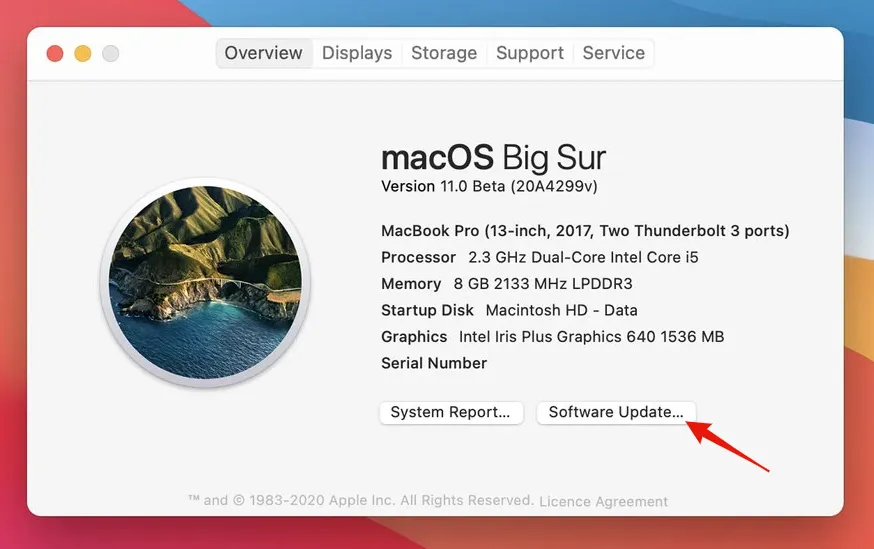
Note: Make sure all macOS and driver updates are completed before you begin to use Boot Camp as you may experience partition errors. To download macOS software updates, choose Apple menu System Preferences, then click Software Update.
Download Windows
Step 1: For this example we'll use Windcows 10, but you can also use Windows 11.
Visit Microsoft’s Download Windows 10 Disc Image (ISO File) page. For Edition, choose Windows 10, and click Confirm. Next, select the desired language, and click Confirm. Finally, click the 64-bit Download button to begin the Windows 10 ISO download.
Run Boot Camp Assistant
Step 2: Once the Windows iSO download is completed, launch Boot Camp Assistant in Applications Utilities and click Continue (if it's not in the utilities folder, it may be in the 'Other' folder). Step 3: If you're asked to insert a USB drive, plug your USB flash drive into your Mac. Boot Camp Assistant will use it to create a bootable USB drive for Windows installation. Next, click the Choose button next to the ISO image box, and select the Windows 10 iSO file downloaded in Step 1.
Step 4: You can leave the Windows partition size as default (it was 39 GB for us), or you can adjust the Boot Camp partition size by moving the Windows partition to the desired amount of space (100 GB in the example below).
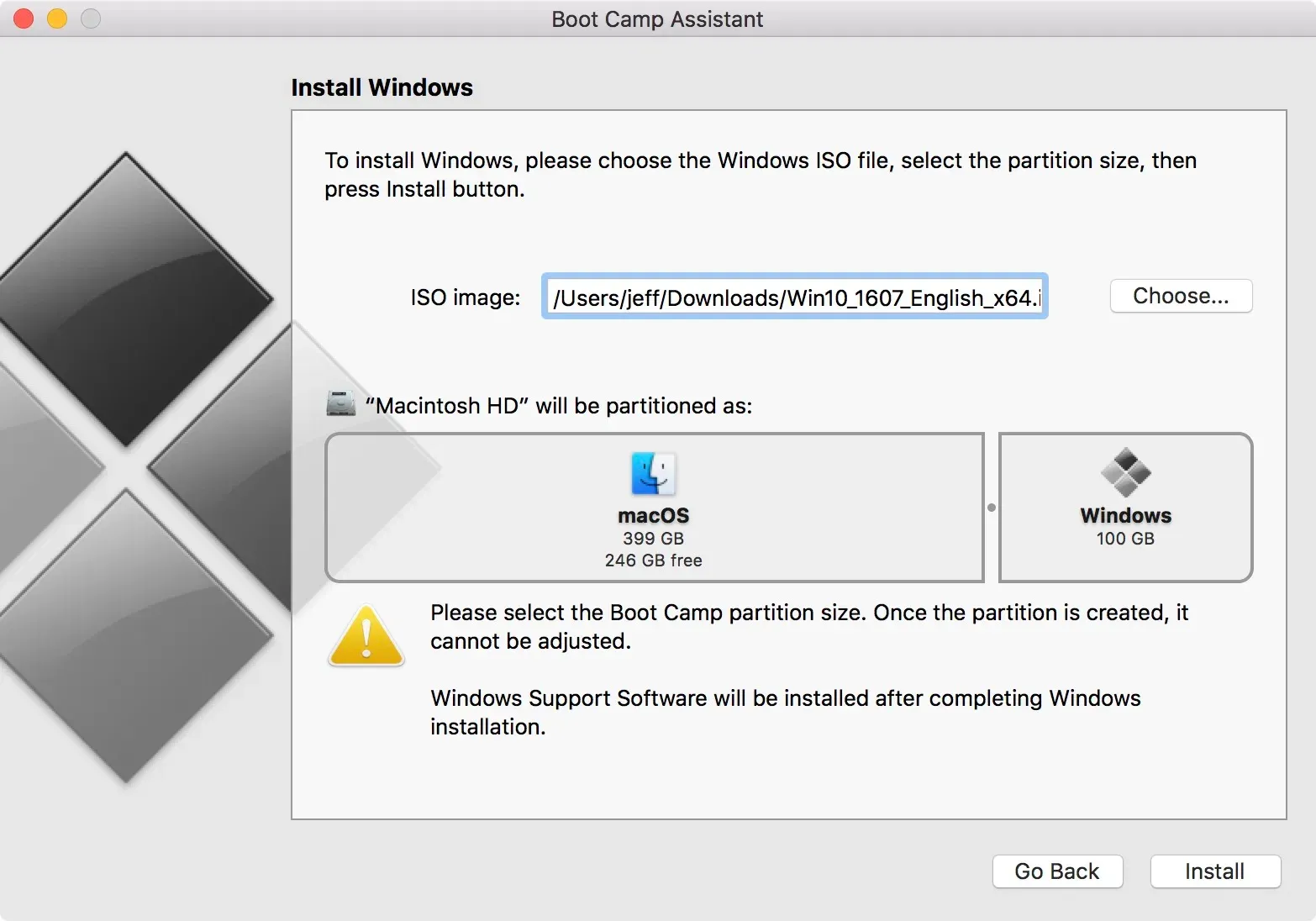
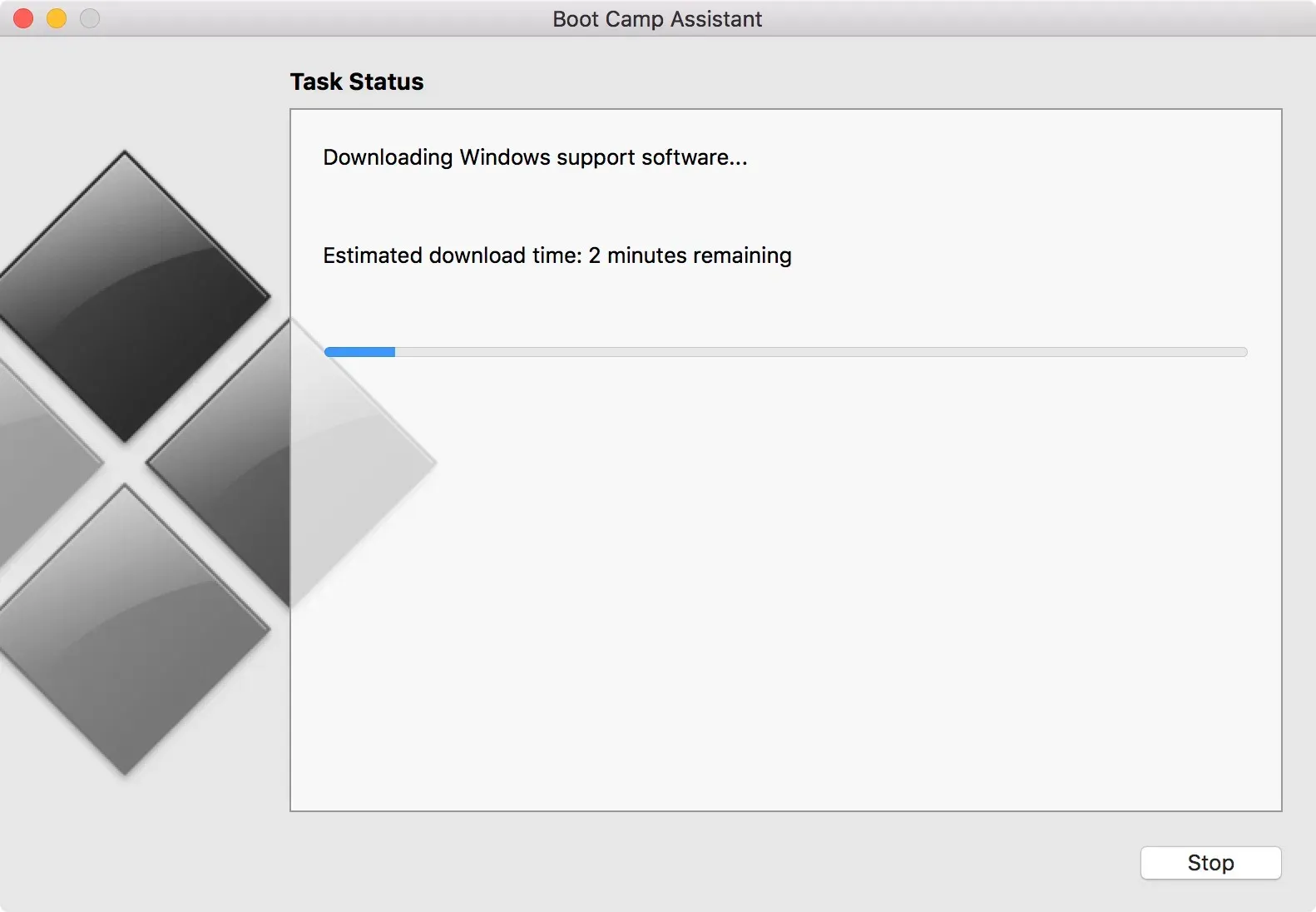
Step 5: After selecting the Windows 10 iSO file and adjusting the partition sizes, click Install. The Boot Camp Assistant will automatically download Windows support software from the internet, partition the disk, and copy the necessary Windows files. You will then be prompted to enter your macOS administrator password, and shortly thereafter, macOS will then reboot into Windows Setup.
Install Windows 10
Step 6: Upon reboot, you’ll see the Windows logo followed by the Windows Setup screen. Select the desired language, time, and country format, along with the keyboard or input method, and click Next. Step 7: You’ll now arrive at the Activate Windows box. If you already have a Windows 10 product key, enter it and click Next for trial mode (you can enter a key later). Otherwise, click I don’t have a product key at the bottom of the box.
Info: You can buy a genuine OEM Windows 10 product key from eBay for around $5 - there are hundreds of listings.
Step 8: Select either Windows 10 Pro or Windows 10 Home. You can compare each version of Windows 10 here - Zen Studio works with both so it's purely your own personal reference. Click Next after choosing the preferred version.
Step 9: On the Applicable notices and license terms screen, check the I accept the license terms box in the bottom left-hand corner, and click Next. Step 10: The installation process will now commence. Windows Setup will copy needed files, and install features and updates. The installation process should only take a few minutes. Once it’s complete, your Mac will automatically reboot after 10 seconds.
Important: At this point, you must unplug the USB stick, or it will try to install Windows again.
Step 11: Upon rebooting, the Windows logo will appear again, and the setup process will continue and reboot again. Eventually. You’ll see the blue "Get Going Fast" screen. You can opt to use express settings, but we recommend clicking the Customize button and disabling all of the switches. Click Next to proceed to the next pages.
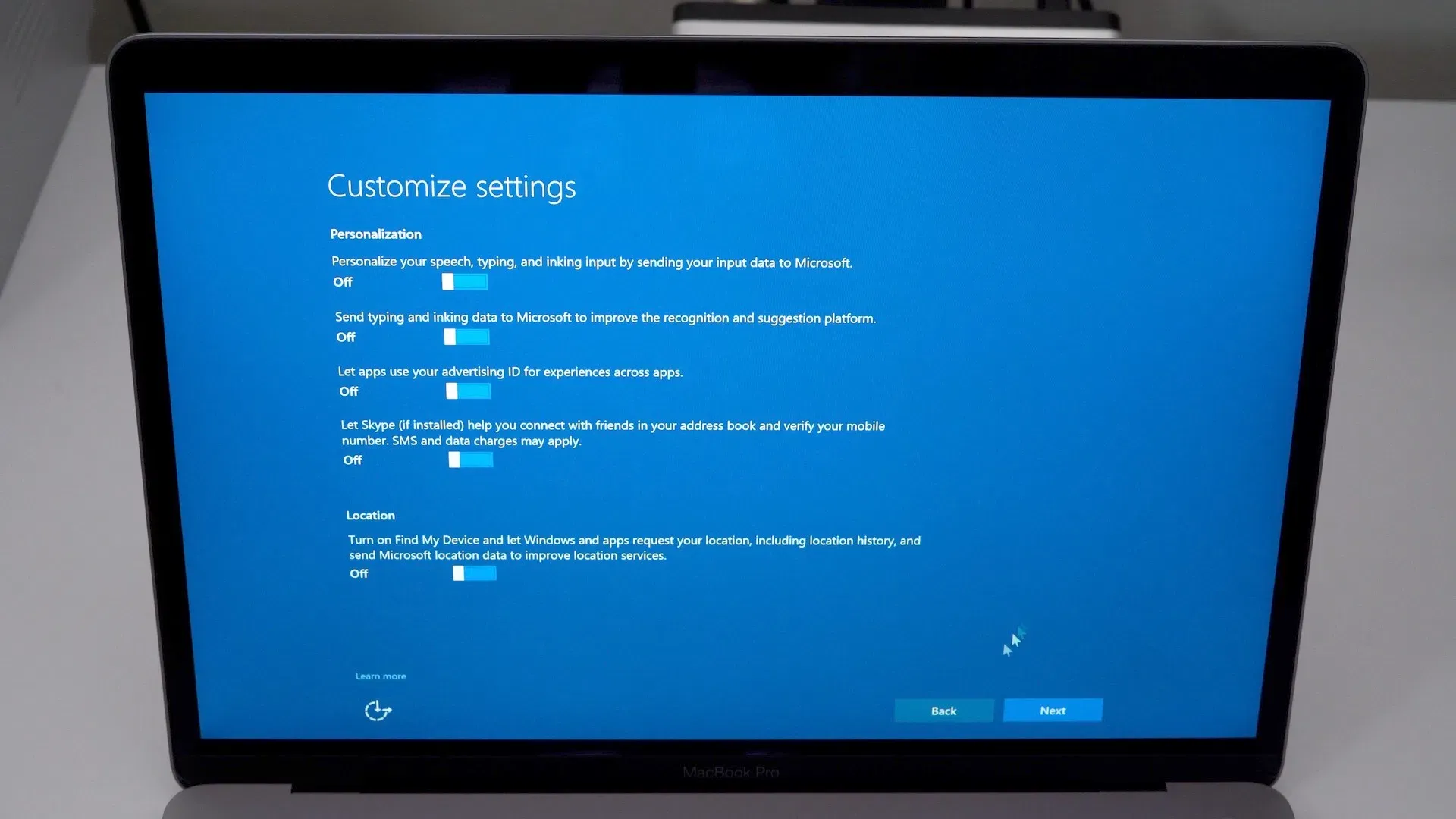
Step 12: You’ll now be asked to create an account or sign in with your current Microsoft account (outlook.com, live.com, hotmail.com etc.) An account name is required, but a password is not. Click Next once you select the desired user name and password combination. Step 13: On the Meet Cortana screen, you can choose to enable the Cortana personal assistant. We recommend keeping it disabled by clicking the Not now button.
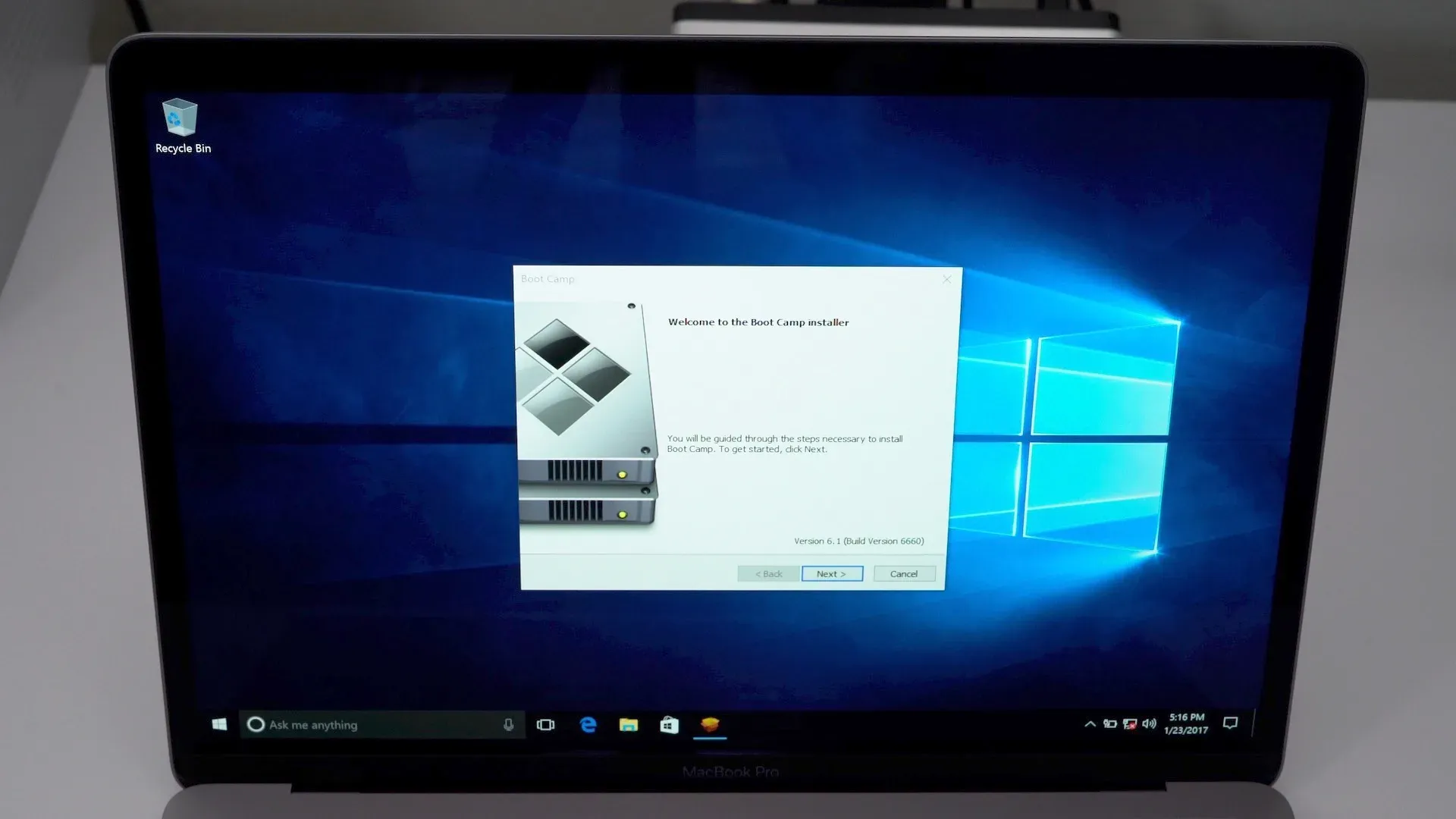
Step 14: Windows will now finish up the setup process, and you’ll eventually be taken to the Windows 10 desktop. On the Welcome to Boot Camp installer box, click Next and accept the terms of the license agreement. Click Install to proceed with the installation. If any additional driver installation boxes appear, be sure to Install those as well. Once the installer completes, make sure the Restart System box is checked, and click Finish to reboot your machine. Step 15: Upon rebooting, click the Wi-Fi icon in the system tray and connect to your local Wi-Fi network.
Apple Software Update
This next step is very important because it updates to the latest sound drivers. The initial driver is known to cause sound problems, so it’s important that you update.
Step 16: Click the Start Button and select Apple Software Update. Select any of the updates that appear, and click the Install items button in the bottom right-hand corner. Click Yes on the User Account Control pop up windows that appears, and click Install on any additional related software installations. Step 17: Ensure that any in-progress installations complete, and then click Yes on the Apple Software Update Restart pop up window that appears. Your Mac will reboot back into Windows 10.
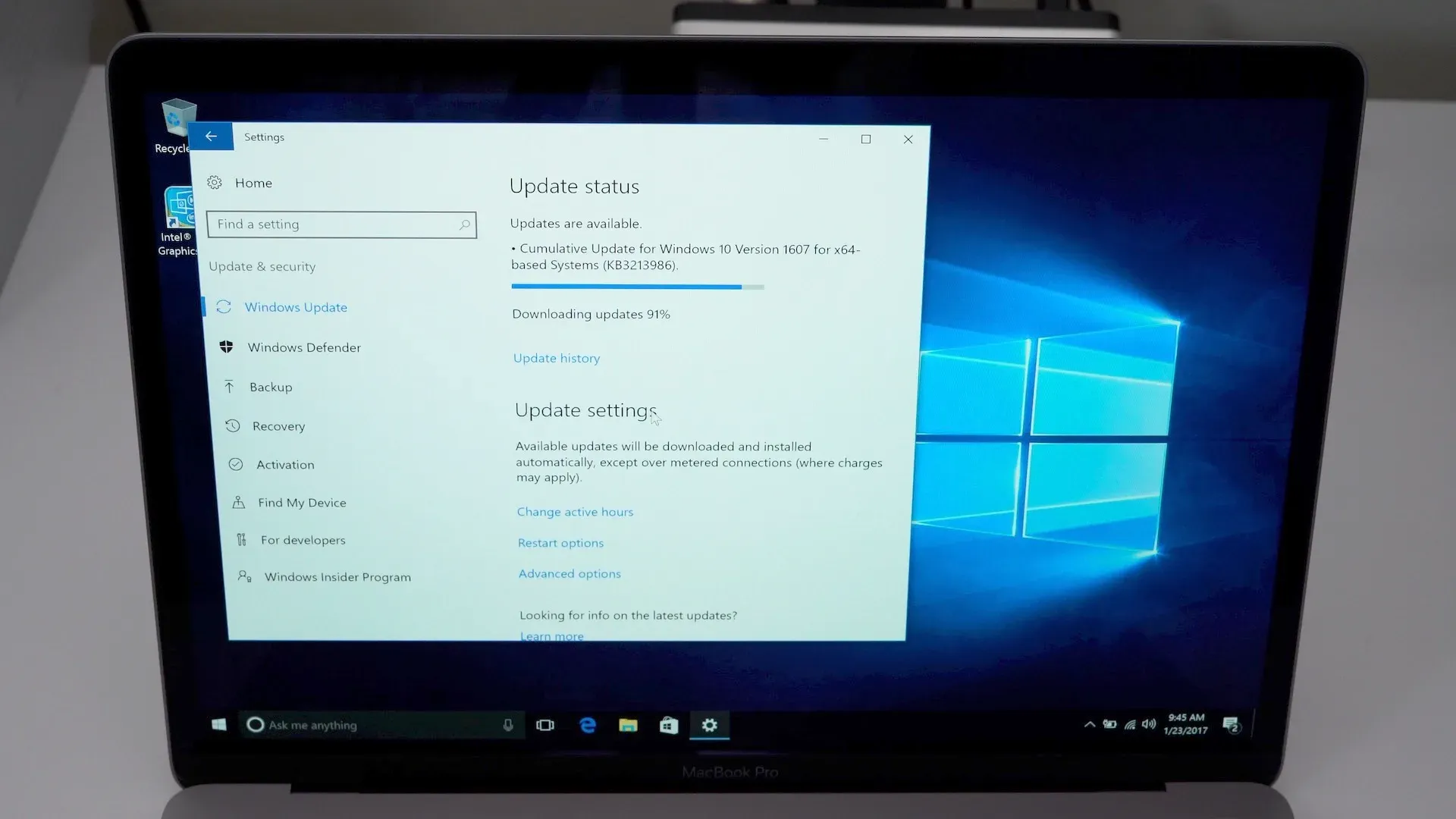
Step 18: Finally, go to Start 👉 Settings 👉 Update & security, and click the Check for updates button. Windows will download any needed updates, and prompt you to restart after doing so. Click Restart now to complete the installation and reboot. Step 19: This Windows 10 trial will last for 180 days with limited functionality (Zen works 100% in trial mode). You can activate it at any time with a genuine registration key which you can purchase on eBay for around $5.
Step 20: You can now proceed to setup your Cronus Zen 👇
Important: If your Cronus Zen is not detected by your Mac, it's likely because it's a newer model with a USB-C port (most models 2017+). In these cases, simply use a powered USB Hub and the Mac will correctly detect the Zen. You can also use a Micro-USB to USB-C adapter if you only have a Micro-USB cable.
Note: In our own tests we used a MacBook Pro 2017 with this Belkin USB3.0 4 Port Powered Hub, but any powered hub should work (it MUST be powered - with its own power supply - not powered by a USB port)
Restart your Mac in macOS or Windows
After installing Microsoft Windows on your Mac, you can choose whether your Mac starts up in macOS or Windows.
Boot to macOS from Windows
- From the notification area on the right side of the Windows taskbar, click 🔼 to show hidden icons.
- Click the Boot Camp icon.
- From the menu shown, choose Restart in macOS...
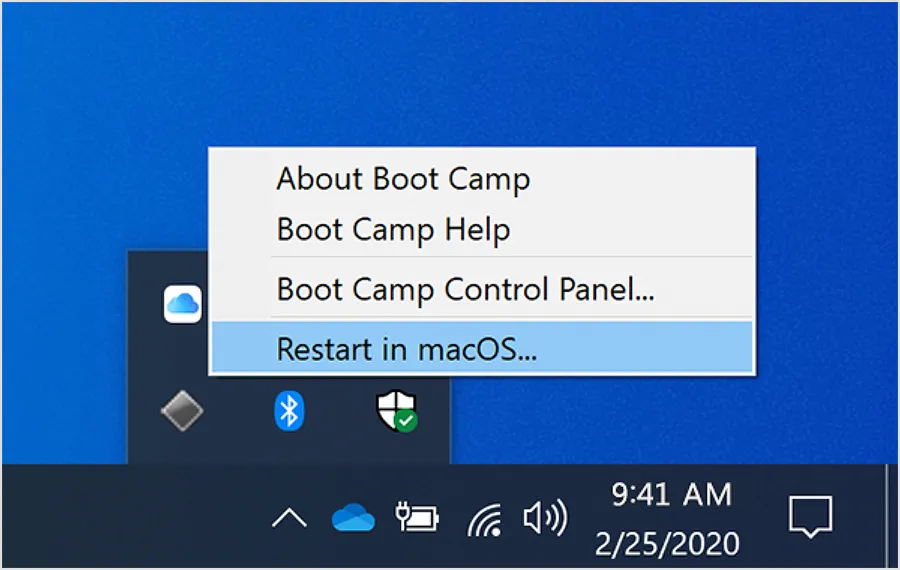
Important: If you haven't installed the latest Boot Camp updates, you might get the message ”Could not locate the OS X boot volume."
Boot to Windows from macOS
Click Apple Menu System 👉 Preferences 👉 Startup Disk 👉 BOOTCAMP Windows and restart.
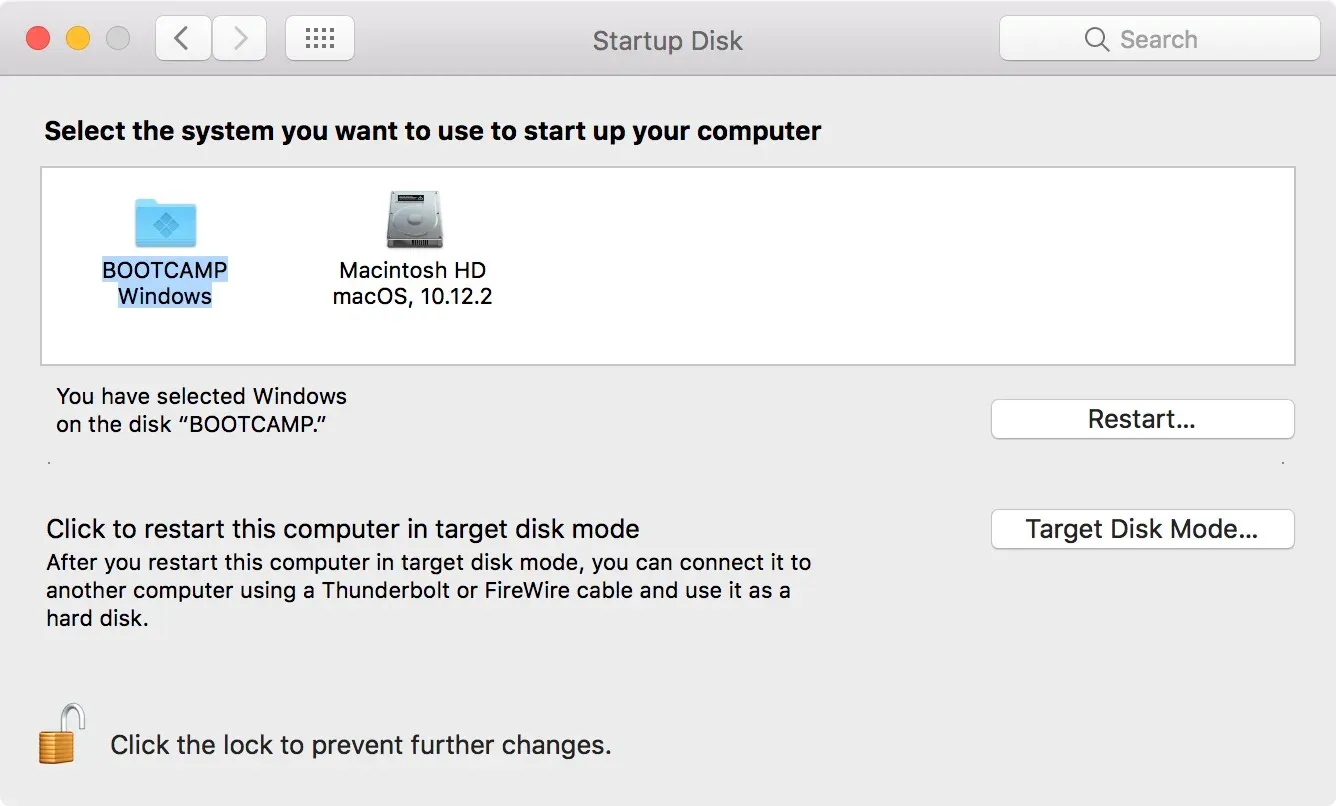
Rebooting into macOS or Windows
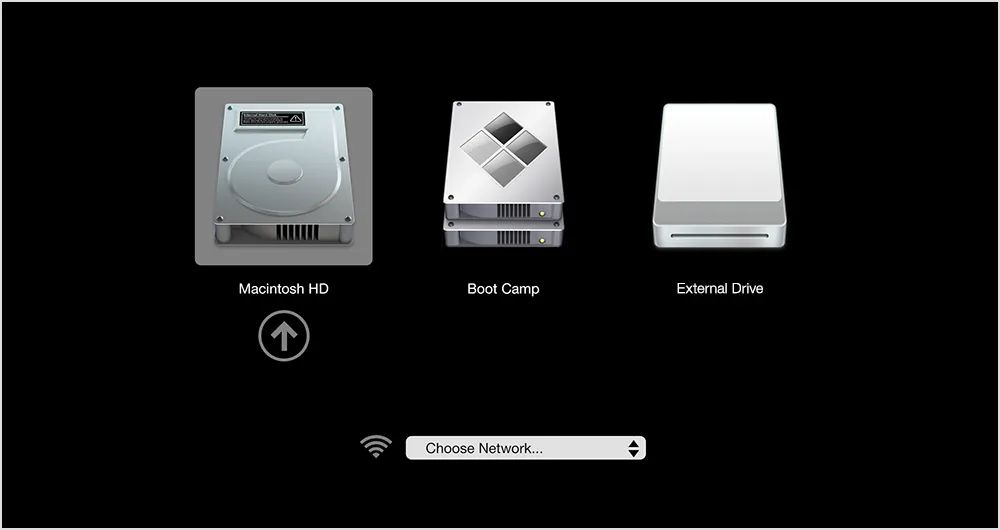
When you use Startup Manager to select a startup disk, your Mac starts up from that disk once, then returns to using the disk selected in Startup Disk preferences.
- Press and hold the Option (or Alt) ⌥ key immediately after turning on or restarting your Mac (Some newer models require that you press Option + S).
- Release the Option (or Alt) ⌥ key when you see the Startup Manager window.
- If your Mac is protected by a firmware password, you can release the key when you're asked to enter the password. Select your startup disk (Macintosh HD = macOS & Boot Camp = Windows 10), then click the arrow under its icon, or press Return.
Info: If you press and hold the Control (or Ctrl) ⌃ key during step 3, your selection is saved in Startup Disk preferences, so it persists until you change it.
If your Cronus Zen is not detected by your Mac, it's likely because it's a newer model with a USB-C port (most models 2017+). In these cases, simply use a powered USB Hub and the Mac will correctly detect the Zen. You can also use a Micro-USB to USB-C adapter if you only have a Micro-USB cable.
Note: In our own tests we used a MacBook Pro 2017 with this Belkin USB3.0 4 Port Powered Hub, but any powered hub should work (it MUST be powered - with its own power supply - not powered by a USB port).
Uninstall Windows
To remove Windows from your Mac, use Boot Camp Assistant only, not any other utility.
More Info
For more information about using Windows on your Mac, open Boot Camp Assistant and click the Open Boot Camp Help button. Here is the 👉 Official Apple Guide for your reference. We also invite you to post comments or suggestions to the 👉 Zen Studio on Mac w/BootCamp Support Topic in the Cronus Community.