Xbox® Series X|S
Cronus Zen supports all versions of the Xbox® Series X|S console, and all official Xbox® Series X|S controllers.
Remember, when using Cronus Zen, any supported device (controllers, mice, keyboards) will work with your Xbox Series® X|S console! 🎮🚀
Xbox® Series X|S Consoles
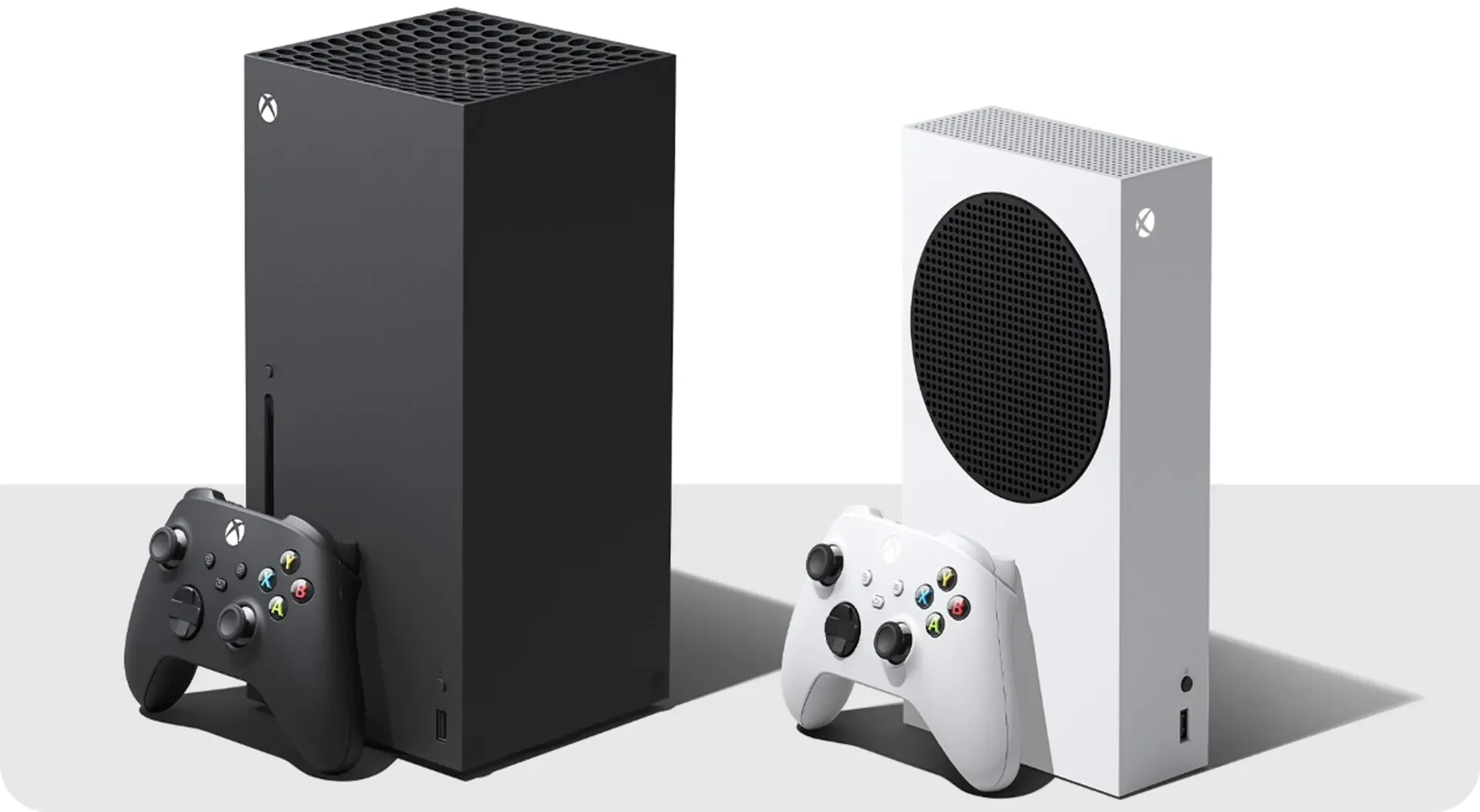
Console Version | Supported |
|---|---|
Xbox® Series X | YES |
Xbox® Series S Digital | YES |
Xbox® Series X|S Controllers
Cronus Zen supports all variants of the Xbox® Series X|S controllers (USB & Xbox Wireless Adapter - Bluetooth is not supported).
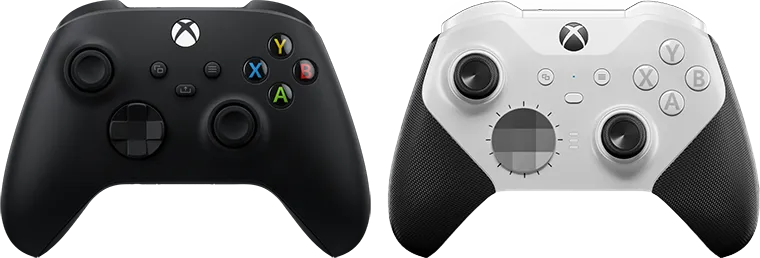
Controller Model | USB | Adapter | Bluetooth |
|---|---|---|---|
Xbox® X|S (1914) | YES | YES | NO |
Xbox® X|S Elite Series 2 Core | YES | YES | NO |
Licensed Controllers
The following are third-party licensed Xbox® Series X|S & Elite Core controllers that have been verified to work with Cronus Zen either by USB or Xbox Wireless Adapter.
Note: Some Xbox® Series X|S and Xbox® One controllers share identical names, but one may be supported by Zen and the other may not, so it's a good idea to know which model you have. They're easy to identify by the extra 'Capture' button (see image below).
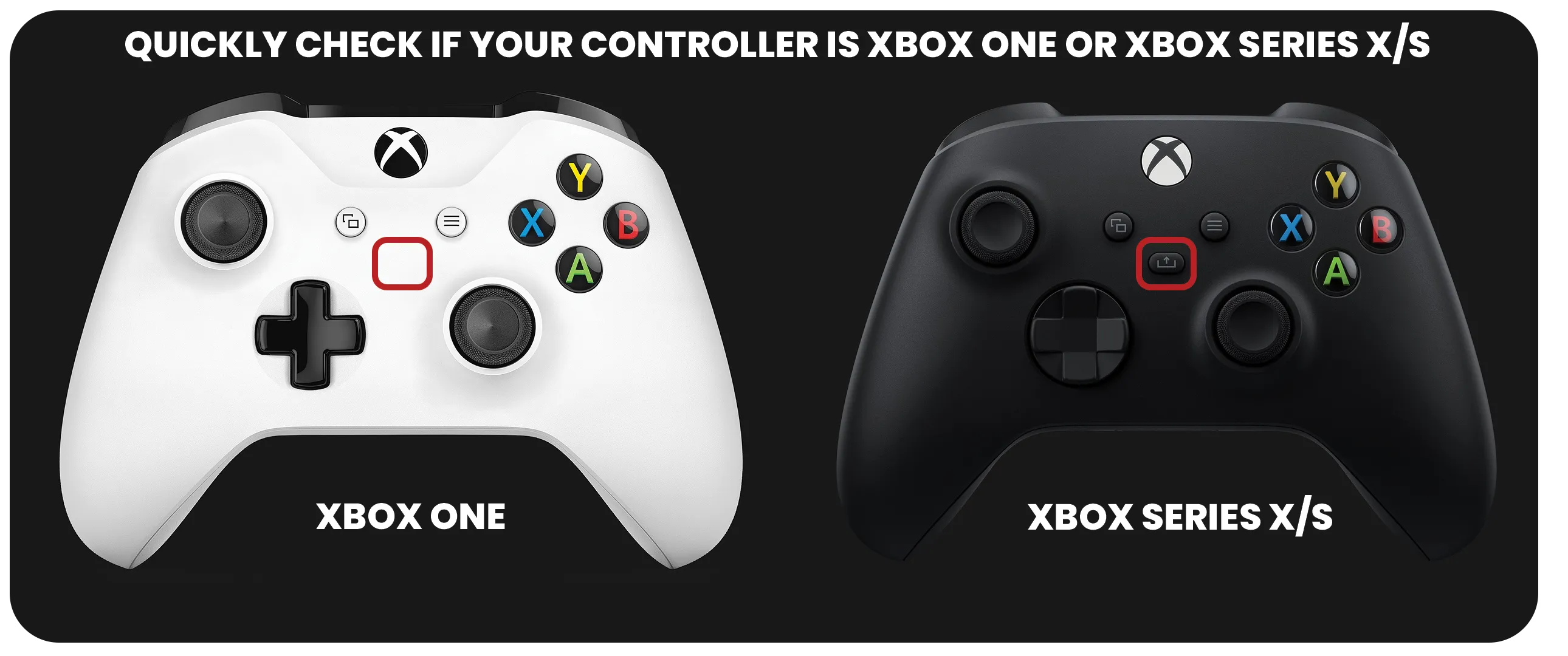
If you're using a licensed Xbox® Series X|S controller that works but not listed here, we'd love to know! Reach out to us at cronus.support. 🥰
Xbox® Series X|S Controller | USB | Adapter |
|---|---|---|
Gamesir G7 SE (see GameSir® Fix guide) | YES | NO |
Nacon RIG Pro Compact | YES | NO |
PDP Afterglow | YES | NO |
PowerA Fusion Pro 2 | YES | NO |
PowerA Fusion Pro 3 | YES | NO |
PowerA Spectra Infinity | YES | NO |
PowerA Enhanced | YES | NO |
Razer Star Wars (Boba Fett) | YES | YES |
Razer Star Wars (Mandalorian) | YES | YES |
Razer Star Wars (Rebel) | YES | YES |
Razer Wolverine v2 | YES | NO |
Razer Wolverine v2 Chroma | YES | NO |
Scuf Instinct | YES | YES |
Scuf Instinct Pro | YES | YES |
Turtle Beach Recon | YES | NO |
Turtle Beach REACT-R | YES | NO |
Victrix Gambit Dual Core | YES | NO |
These controllers are NOT currently compatible with Cronus Zen:
- Xbox® Series X|S ThrustMaster ESWAP S PRO
- Xbox® Series X|S ThrustMaster ESWAP X PRO
- All unlicensed Xbox controllers
- All Flight Sticks
- All H.O.T.A.S.
Controller Setup
This guide will show you how to connect any controller to an Xbox® Series X|S console.
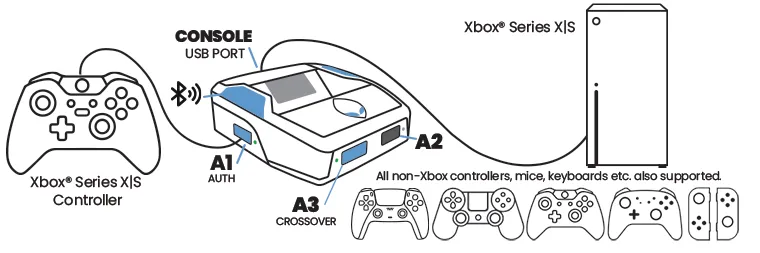
First make sure your Zen is updated to 2.2.14. If it isn't, you'll need to visit STEP 1: Update Firmware.
OK, Let's get after it.
- Connect the Cronus Zen to your PC using the PROG USB port.
- Open Zen Studio 1.6.1 Build 82.
- Select the Device panel.
- Set the Emulator Output Protocol to XBOX ONE X/S.
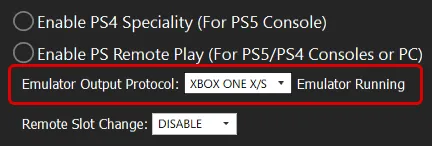
- Xbox® Series X|S Controller (USB):
- Connect to the A1 USB port. That's it. 😁
- Crossover Gameplay:
- Other devices such as non-Xbox® controllers, mice, keyboards etc. use the A3 USB port, and also the A2 port if you need to connect two devices.
- You can also use a secondary device alongside an Xbox® Series X|S controller such as a mouse for enhanced aiming, or a keypad with dozens of assigned MACROs.
- Crossover Note:
- An Xbox® Series X|S controller must be connected to A1 while using any crossover device on an Xbox® Series X|S console.
- Bluetooth Pairing:
- Tap Zen's Bluetooth pairing button (P2) for pairing mode, then...
- DualSense® Controllers: There is currently no Bluetooth support. Use USB.
- Xbox® Controllers: There is currently no Bluetooth support. Requires adapter.
- Nintendo® Switch Controllers: Hold down Sync buttons for pairing mode.
- DualShock® Controllers: Hold down SHARE + PS for pairing mode.
- Wireless Adapters:
- To achieve wireless support for Xbox® controllers, the Xbox Wireless Adapter is required. Plug it into A3, connect the Xbox® controller to A2 for a few seconds, then unplug. Soon, the LED on the Adapter and controller will turn solid white, indicating successful pairing.
- The Astro® C40 adapter can also be connected to A3.
🔋 IMPORTANT
Your controller might not charge when connected via Zen. Ensure its fully charged or equipped with fresh batteries to prevent disconnections.
🎧 WIRED HEADSETS
Considering the wide variety of headsets, controllers, and consoles, we can't promise full audio functionality for every combo, especially third-party controllers. However, many official controller USB setups are compatible.
Give yours a try and find out! 🎮